Figma

How It Works

Figma is a cloud-based design tool for digital interfaces.

Stage

3.1

Method

Prototyping & Testing

Objective

More detailed and interactive versions of the design

What is Figma?

Figma is a cloud-based design tool for digital interfaces.

Real-time collaboration - Work together on projects simultaneously

What is Figma?

Figma is a cloud-based design tool for digital interfaces.

Real-time collaboration - Work together on projects simultaneously

Design your first button

In this project, we’re going to design a simple button that automatically resizes based on the length of its label. Buttons are common elements used in UI design and this project will give you hands-on experience using the Text tool and auto layout.

To create our button, we’ll do the following:

  1. Add a text layer

  2. Convert the text layer to an auto layout frame

  3. Style the button

  4. Turn the button into a component

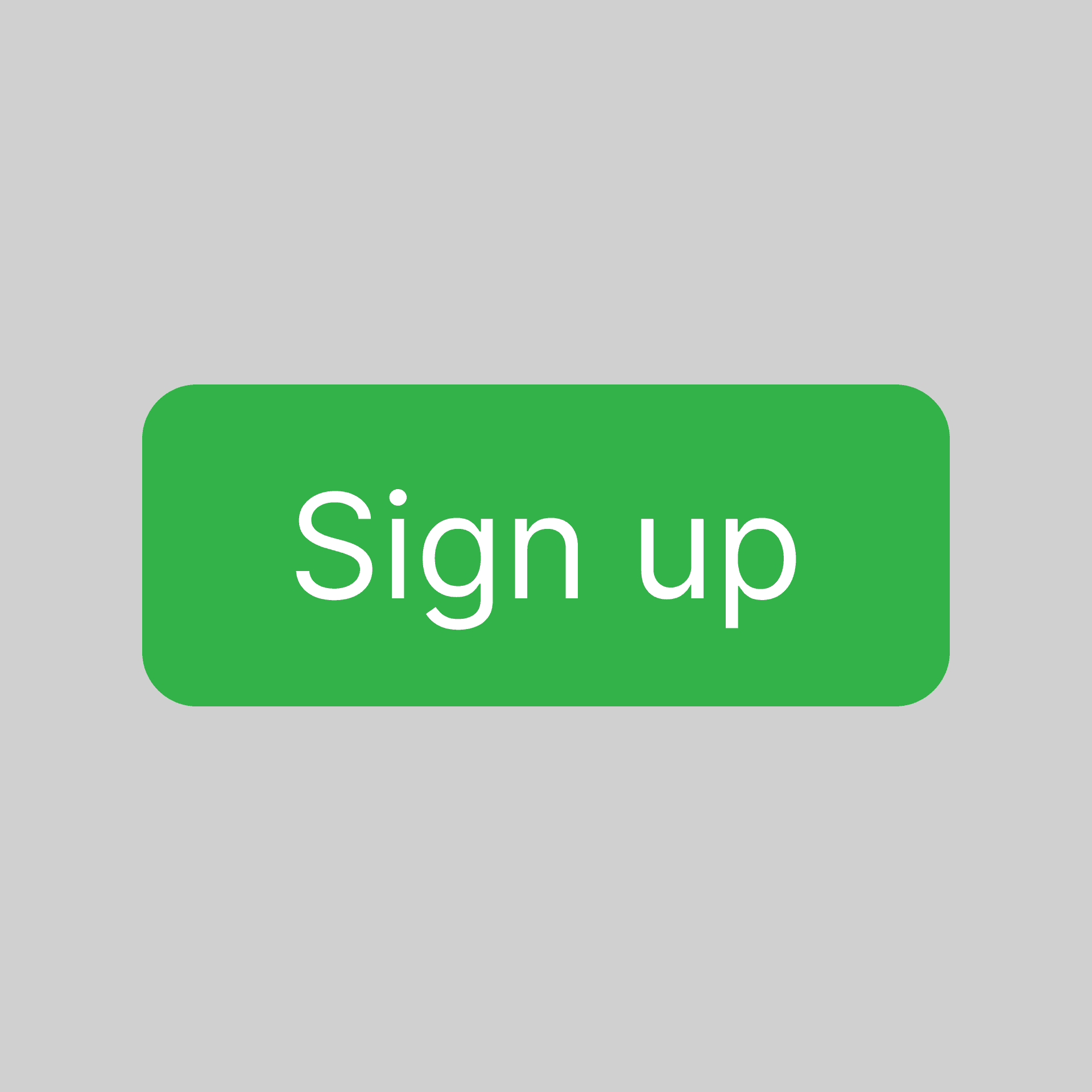
If you follow along step by step, your final button will look similar to the following:

Add a text layer

We’ll start by adding a text layer.

  1. Enable the Text tool by clicking the Text tool in the toolbar or using the T keyboard shortcut.

  2. Click on the canvas and type Button to create the text layer.

In the left sidebar, you’ll notice the Layers panel in the left sidebar has a new text layer named “Button”. Double-click on the layer and rename it to Label.

While we’re here, let’s increase the font size on our text layer. With the text layer selected, use the setting in the Text section of the right sidebar to change the font size to 16. We’ll be sticking with the default Inter font but feel free to pick another font style.

Convert the text layer into an auto layout frame

Our button isn’t looking too glamorous yet but we’re about to spice things up using auto layout.

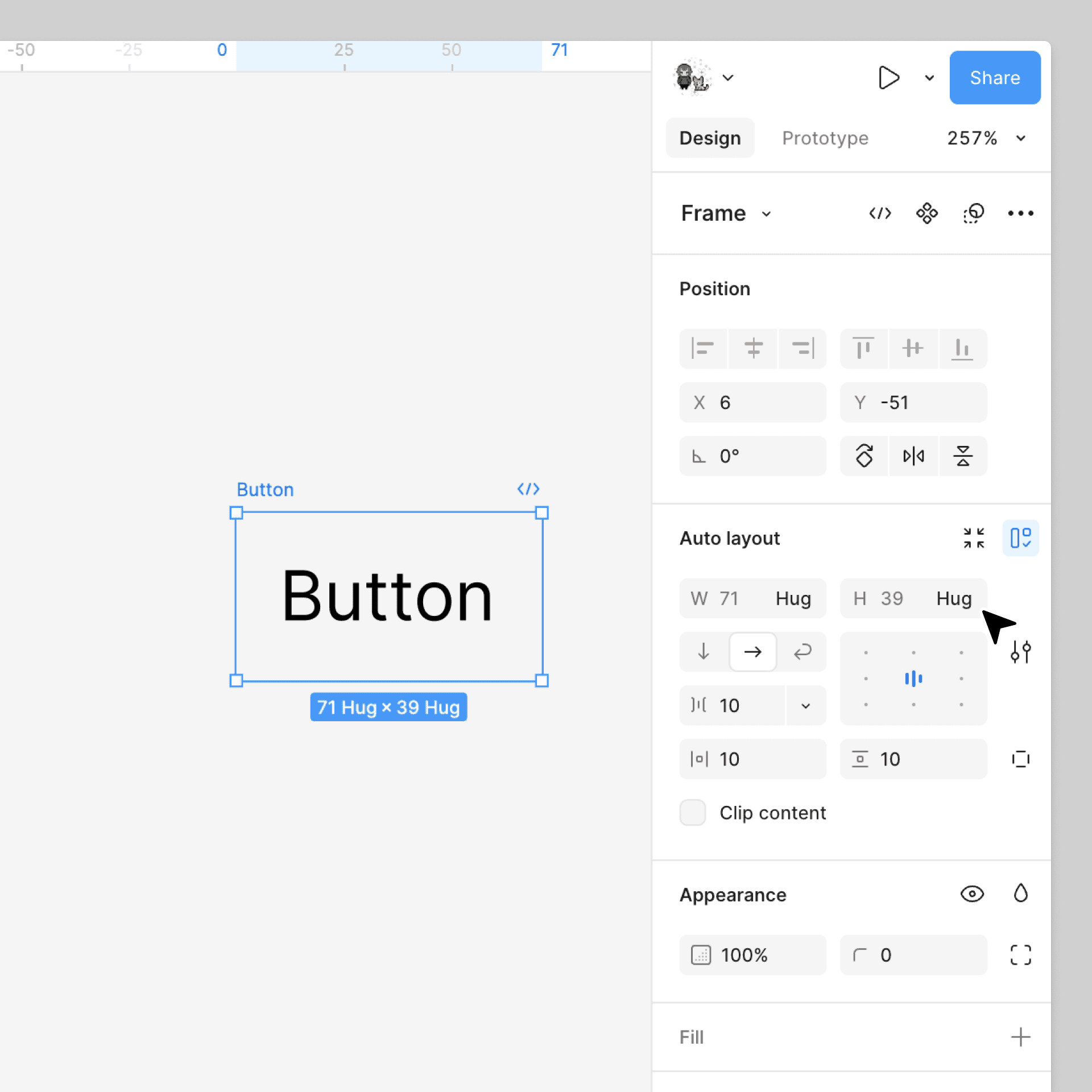
You can apply auto layout to an existing frame or use it to turn a layer into a frame. We’ll use the second option. Select the Label layer and use the shortcut Shift A

In the Auto layout section of the right sidebar, check to make sure that the Horizontal resizing and Vertical resizing settings are both set to Hug. Double-click on the new frame in the left sidebar and rename it to Button.

Style the button

Add some color

  1. Select the Button layer and click the plus in the Fill section of the right sidebar to add a fill color.

  2. Use the color picker to change the color. We’re using color code #33B249.

  3. Select the Label layer nested inside the frame layer and adjust the fill to #FFFFFF.

Round the corners

  1. Select the Button layer.

  2. In the right sidebar, set the Corner radius to 6.

Fix the padding

Finally, let’s fix the frame’s padding. When we converted the text layer to an auto layout frame, it automatically added padding between the frame’s boundary and the text inside. Right now, the padding is equal on all sides. We want the top and bottom padding to be less than the left and right padding.

  1. Select the Button layer.

  2. Hover your cursor over the selected frame. Handles that appear allow you to change the padding. You can either click and drag the handle to modify the padding, or click once on the handle and type a number in the box that displays.

  3. Use either method to update the padding to the following:

    • Top and bottom padding:8

    • Left and right padding: 16

Dica: você pode alterar o espaçamento superior e inferior ou o espaçamento esquerdo e direito simultaneamente usando os seguintes atalhos:

  • Mantenha pressionada a tecla ⌥ Option(macOS) ou Alt(Windows) e clique na área de preenchimento para inserir o valor de preenchimento para os lados opostos.

  • Mantenha pressionada a tecla ⌥ Option(macOS) ou Alt(Windows) enquanto arrasta as alças para alterar o espaçamento dos lados opostos.

Transforme o botão em um componente.

Nosso design de botão está completo! Antes de finalizarmos o projeto, vamos transformá-lo em um componente para que possamos reutilizá-lo em projetos futuros.

  1. Selecione a camada Botão .

  2. Clique Crie um componente na barra lateral direita.

Agora você pode adicionar instâncias do seu botão na aba "Recursos" da barra lateral esquerda, assim você nunca mais precisará criar um botão do zero. Saiba mais sobre como usar componentes →


References: https://help.figma.com

Style the button

Add some color

  1. Select the Button layer and click the plus in the Fill section of the right sidebar to add a fill color.

  2. Use the color picker to change the color. We’re using color code #33B249.

  3. Select the Label layer nested inside the frame layer and adjust the fill to #FFFFFF.

Round the corners

  1. Select the Button layer.

  2. In the right sidebar, set the Corner radius to 6.

Fix the padding

Finally, let’s fix the frame’s padding. When we converted the text layer to an auto layout frame, it automatically added padding between the frame’s boundary and the text inside. Right now, the padding is equal on all sides. We want the top and bottom padding to be less than the left and right padding.

  1. Select the Button layer.

  2. Hover your cursor over the selected frame. Handles that appear allow you to change the padding. You can either click and drag the handle to modify the padding, or click once on the handle and type a number in the box that displays.

  3. Use either method to update the padding to the following:

    • Top and bottom padding:8

    • Left and right padding: 16

Dica: você pode alterar o espaçamento superior e inferior ou o espaçamento esquerdo e direito simultaneamente usando os seguintes atalhos:

  • Mantenha pressionada a tecla ⌥ Option(macOS) ou Alt(Windows) e clique na área de preenchimento para inserir o valor de preenchimento para os lados opostos.

  • Mantenha pressionada a tecla ⌥ Option(macOS) ou Alt(Windows) enquanto arrasta as alças para alterar o espaçamento dos lados opostos.

Transforme o botão em um componente.

Nosso design de botão está completo! Antes de finalizarmos o projeto, vamos transformá-lo em um componente para que possamos reutilizá-lo em projetos futuros.

  1. Selecione a camada Botão .

  2. Clique Crie um componente na barra lateral direita.

Agora você pode adicionar instâncias do seu botão na aba "Recursos" da barra lateral esquerda, assim você nunca mais precisará criar um botão do zero. Saiba mais sobre como usar componentes →


References: https://help.figma.com

Other projects

Copyright 2024 by Callum Hayes | Design by Nuno Eusébio

Copyright 2024 by Callum Hayes | Design by Nuno Eusébio

Copyright 2024 by Callum Hayes | Design by Nuno Eusébio

Create a free website with Framer, the website builder loved by startups, designers and agencies.